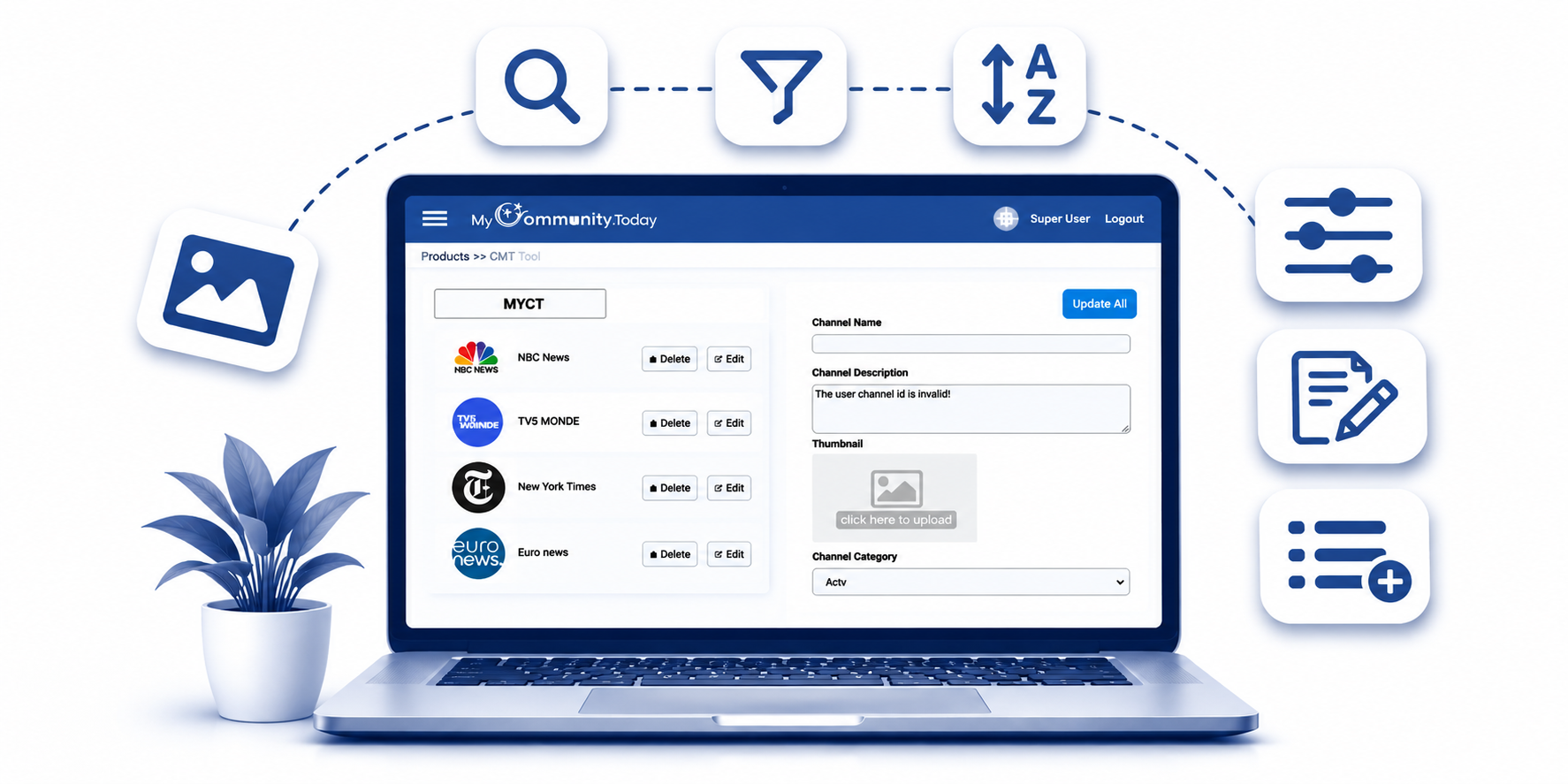








Content Management Tool - Find Content in Seconds
Search, Filter and Sort Content in One Place
Stay in control of every content item with one search panel. Filter by provider, category and location, sort the list and open any item to work on it.
- Fast search
- Smart filters
- No coding needed
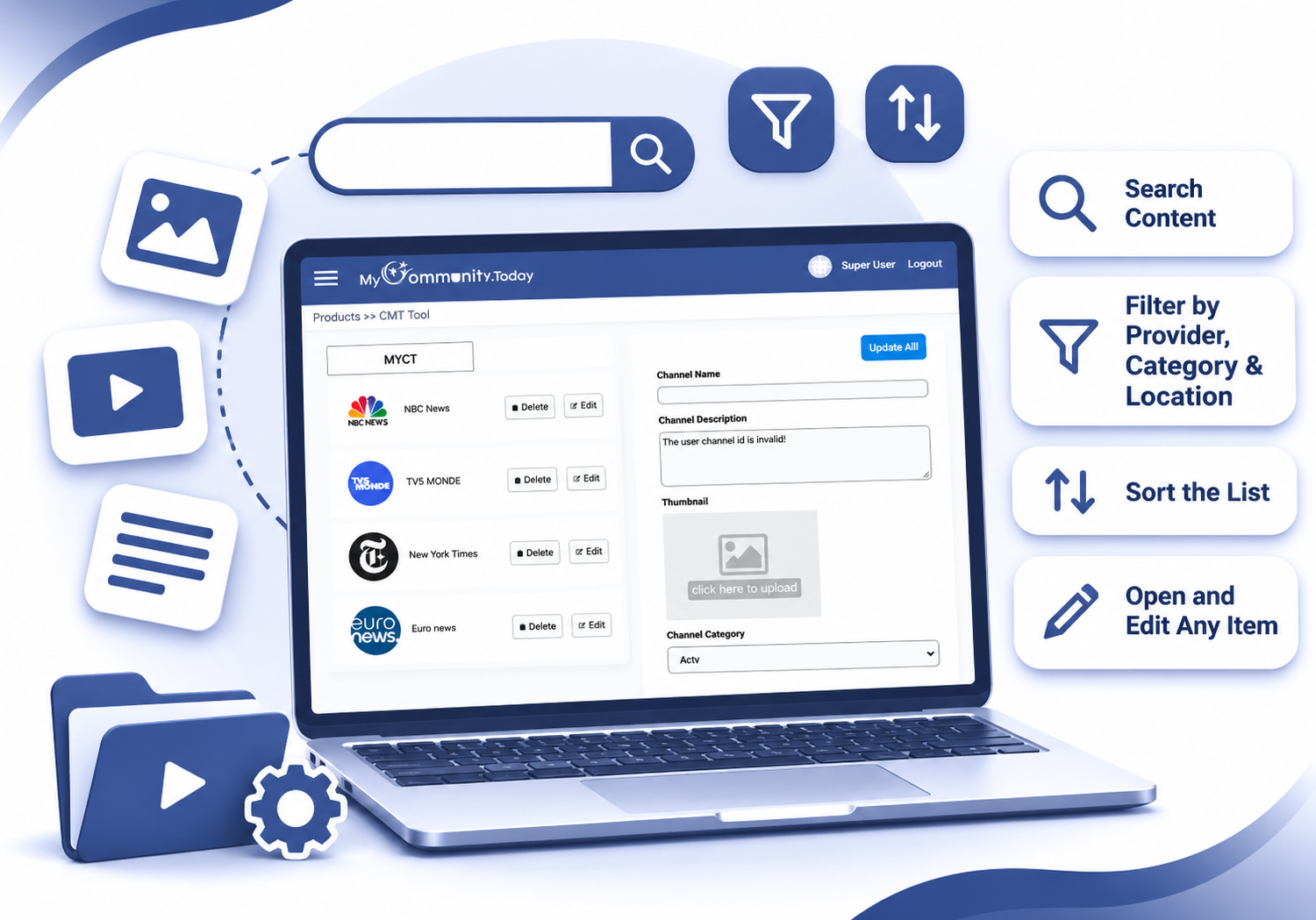
Searchable
Find content with one search bar
Filtered
By provider, category and location
Sorted
Order long lists A-Z in one click
One panel
Open any item to work on it
Content Management Tool
Keep your hub's pages and posts fresh.
Find any page, post or image behind your hub, draft a new post from your words, and retire what's out of date.

Finding Content by Hand Costs You Time
Content spread across lists, folders and spreadsheets is slow to find and easy to lose. Without one clear search, teams lose time every week.
- Content scattered across lists and folders
- No quick way to filter by provider or category
- Hard to find items for a specific location
- Long lists that are slow to scan
One Search. Every Content Item.
The Content Management Tool brings search, filters and sorting into one panel, so your team finds the right item and works on it straight away.
- Search with Provider, Categories and Location filters
- Filter and Sort A-Z controls
- Load More for long lists
- Click any item to work on it in the CMT panel
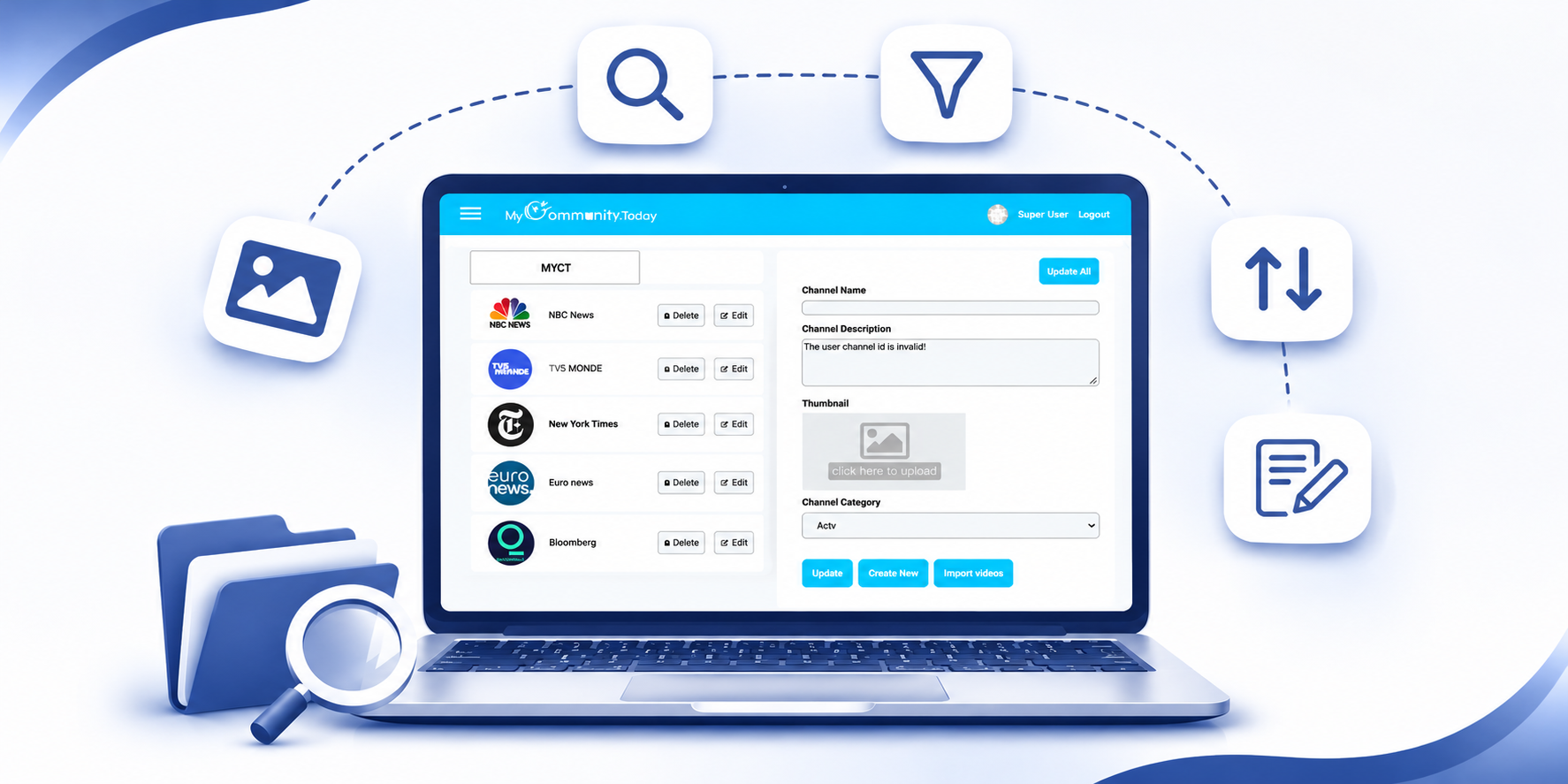
Watch How the Content Management Tool Works
A quick walkthrough of searching, filtering, sorting and opening content in the CMT panel.
Inside the Tool
Three Steps. One Panel.
Search, narrow down, then open the item you need.
Search
Type in the search bar to find content.
- Search bar at the top of the tool
- Results shown as a list
- Provider, category and location on every item
Filter and Sort
Narrow the list, then put it in order.
- Provider and Categories filters
- Select Location and Filter
- Sort A-Z
Work on an Item
Click an item to use the CMT panel.
- Open button on every item
- CMT panel opens for the chosen item
- Load More for long lists
Everything You Need to Manage Your Content
Powerful tools that work together, so you spend less time searching and more time working.
Search
Find content with one search bar at the top of the tool.
Provider Filter
Narrow the list to the provider you need.
Category Filter
Show only the items in the categories you choose.
Location Filter
Select a location to see content for that place.
Sort A-Z
Put long lists in alphabetical order with one click.
CMT Panel
Click any item to work on it, and use Load More for long lists.
From First Search to Finished Work
Four simple steps from a keyword to the right item.
Search
Type in the search bar to find content.
Filter
Choose Provider, Categories and Select Location, then apply Filter.
Sort
Use Sort A-Z to put long lists in order.
Open and Work
Click an item and work on it in the CMT panel.
Clear Search. Confident Work.
Search, filter and sort, then open the item you need right away.