








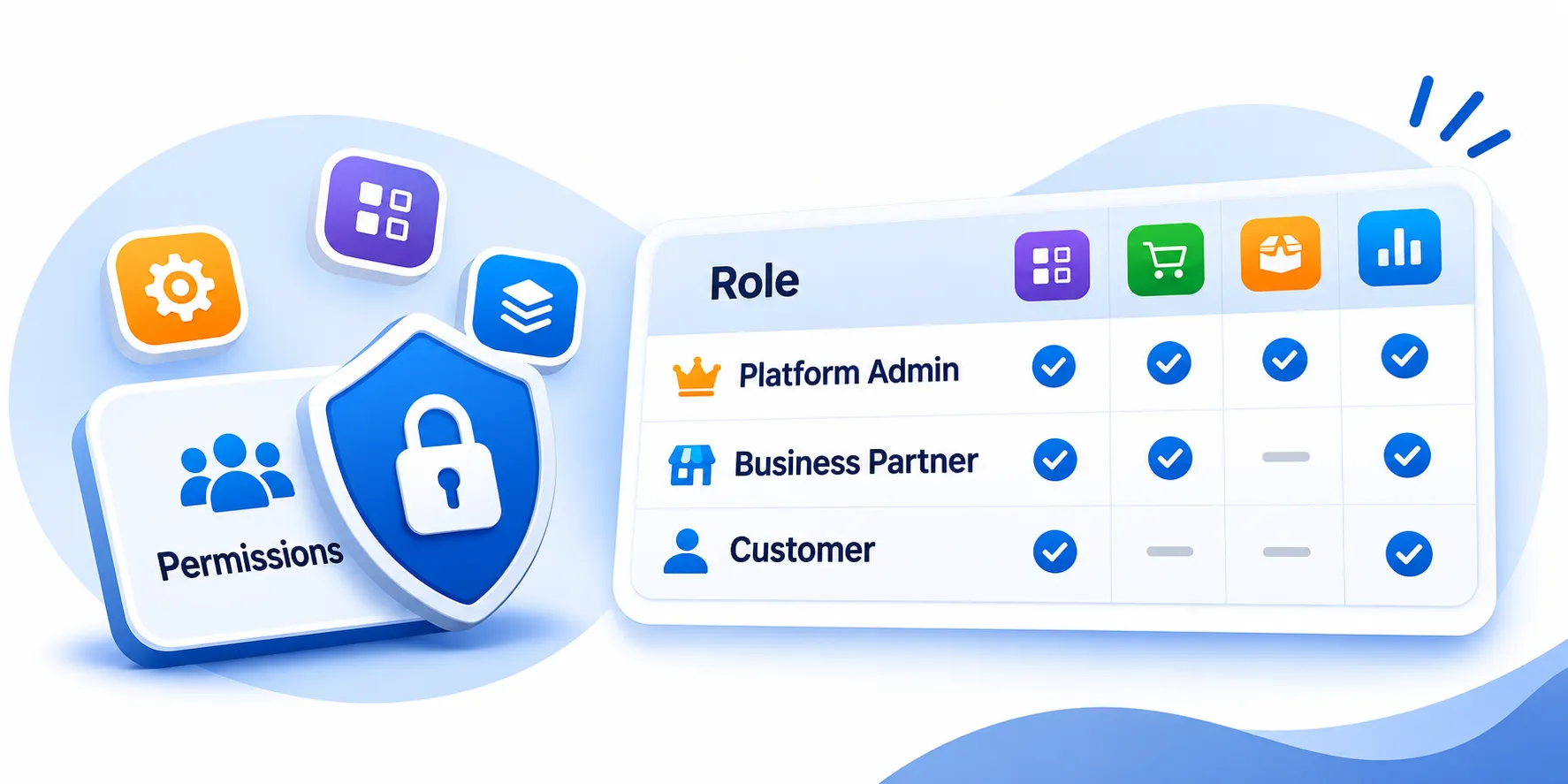
Permissions – See What Each Role Can Do

See which MYCT apps each role can manage or use, in one clear table.

✦ AI Assistant included

Ask who can do what. Get the answer.

Name a role or an app. The Assistant reads the Permissions table and tells you what that role can manage or use, or which roles can work in that app.
Just ask. Tap one to try it:
✓Read only. The Assistant explains who can do what. It never changes a role.
✦AI AssistantPermissions
11 roles·8 apps governed
What can a Store manager do?

Here’s what the Store manager role can do. Nothing is changed.

Store manager4 apps
ManageQuotes · Inventory · Point of Sale · Employees
Use—
No accessCRM · Invoicing · Production · Payroll
Try: Which roles can manage Payroll?
Send
From one question to a clear answer

1

Ask it

Name a role or an app in plain words.
2

See it

The Assistant lists what the role can manage, use or not access.
3

Decide it

Use the answer when you review access with your team.
The Assistant only reads Permissions. It never changes what a role is allowed to do.

From Role to Access in Four Steps

Open Permissions and read what each role is allowed to do.
01

Find the role

All 11 roles are listed in one table.
02

Read its access

See Manage, Use or no access for each app.
03

Compare roles

Read across rows to see how roles differ.
04

Check the apps

Read down a column to see who works in an app.

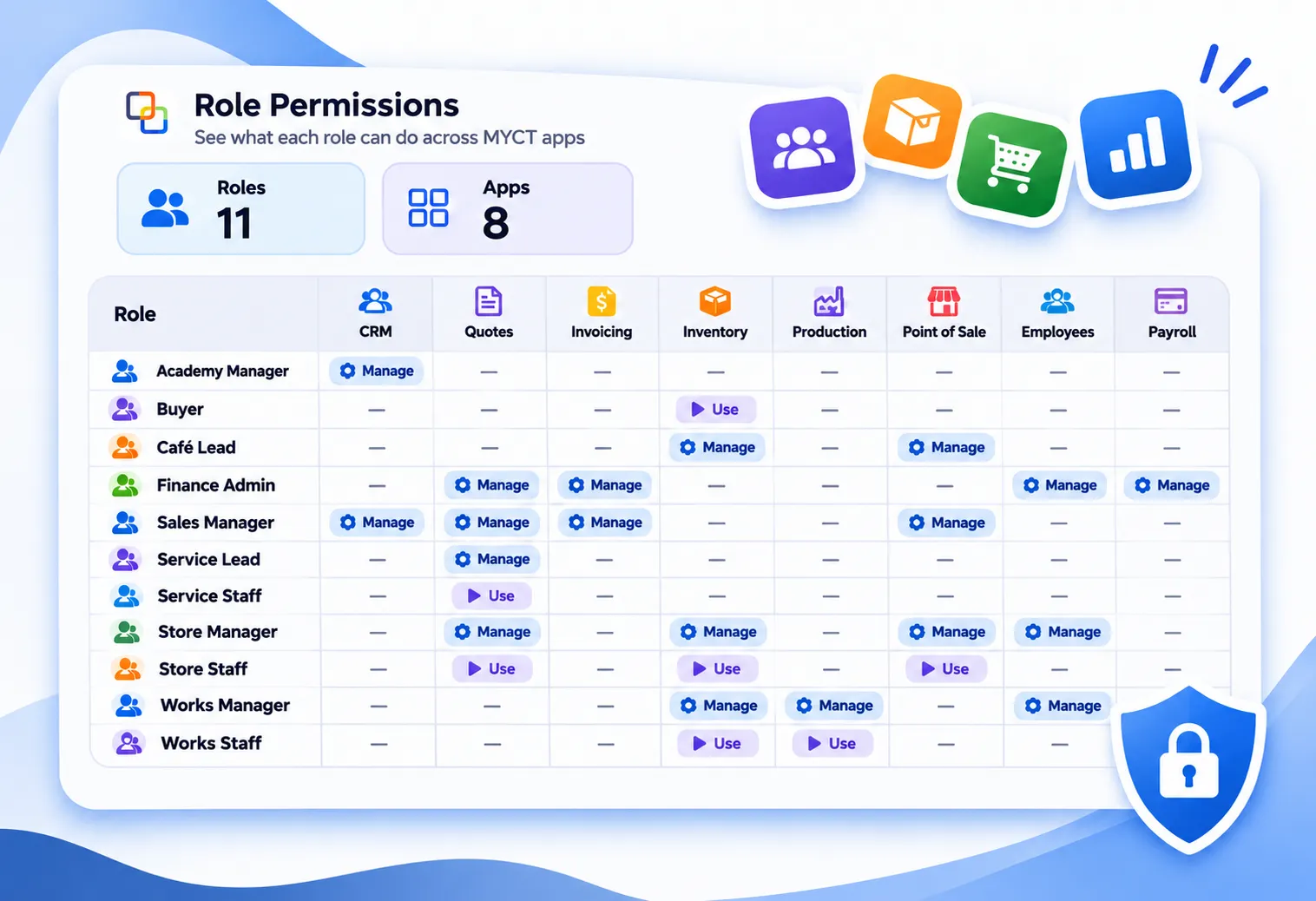
Read every role’s access in one matrix

11 roles across 8 apps, side by side

Each row is a role and each column is an app. Every cell shows whether the role can manage the app, use it, or has no access.
Manage

Manage

The role manages the app.
Use

Use

The role works in the app.
—

No access

A dash means the role has no access to that app.

Benefits of Working with MYCT | Permissions

Our Approach to Permissions

Permissions gives you one place to read what each role is allowed to do across your MYCT apps.
Ask us and we will help you get started.

Highlights of Our Permissions App

Everything you need to see who can do what, built into one platform.

Roles

11 roles, each with its own access.

Apps governed

8 apps covered in one view.

Manage and Use

See the level for each role and app.

No access

A dash marks apps a role cannot reach.

Built for Every Kind of Team

Every role in your business, with the apps it needs.

Sales & Service

Sales manager, Service lead and Service staff

Stores & Café

Store manager, Store staff and Café lead

Works & Buying

Works manager, Works staff and Buyer

Finance & Academy

Finance admin and Academy manager

Permissions Questions, Answered

It shows what each role is allowed to do across your MYCT apps, in one table.

The table lists 11 roles and 8 apps: CRM, Quotes, Invoicing, Inventory, Production, Point of Sale, Employees and Payroll.

Manage means the role manages the app. Use means the role works in it. A dash means the role has no access to that app.

No. The Assistant only reads Permissions. It explains what a role can do and which roles work in an app.

Ask us and we will help you get started.

Let’s Work Together

Success is not just about adopting technology - it’s about leveraging it to create meaningful change. At MyCommunity.Today, we are committed to shaping a more connected, efficient, and innovative future for businesses across all industries. Whether you’re looking to modernize operations, enhance customer experiences, or drive sustainable growth, we are here to help.